
Everyone can have their own software.
Panda Drawer is a desktop app for managing and launching small apps. Use ready-made apps as they are, or work with the AI tool you already use to reshape them, build new ones from scratch, or let your AI do the work and see the results in an app.
Who it's for
People who already use AI tools like WorkBuddy, Codex, Cursor or Trae and want a few apps that fit them, without setting up runtimes. No coding needed.
What you can do
- Use apps right away: start with the official example apps for typing practice, English listening, or an AI radio. Add one and open it.
- Make it yours (recommended): Text too small? Want a new feature? Tell your AI. It edits the app, and you click Reload to see the new version.
- Build your own personal app: Nothing fits? Build a small tool with your AI from scratch, like a notes app or an expense tracker. See how
-
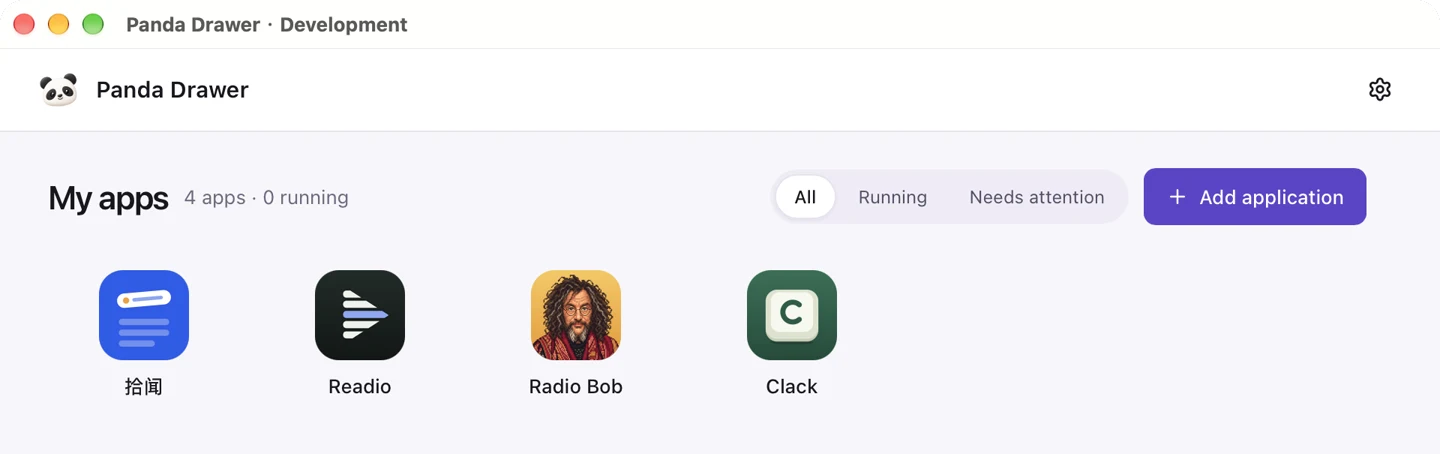
Manage and launch in one place: Add apps others share by pasting a GitHub or Gitee link, and keep the apps you build here too. Each one opens in its own window with one click. No setup, no commands.
- Let your AI do the work, see the results in an app: With Gleaner, your AI gathers news on your topics, and you read, save and give feedback in the app.
Good to know
- No built-in AI, no lock-in: Use WorkBuddy, Codex, Trae, Qoder and more, and switch anytime. Change with WorkBuddy today and continue in Trae tomorrow. It's still the same app. Your own accounts and usage apply.
- Your apps and data stay on your computer.
- macOS and Windows: One-click handoff and title-bar buttons are macOS-only for now. System requirements
Official example apps
These four apps are official examples made by the Panda Drawer team. They are open source: use them as they are, or practice by making them your own. They are only a starting point. Apps others share and apps you build with your AI can live in Panda Drawer too. Find these under Recommended apps when you click Add application.
- Clack · Practice typing in Chinese or English and track your progress. Ready to use after adding it.
- Gleaner · Read news briefings on topics you choose. Your AI tool needs to search the web and read and write local files.
- Readio · Listen to English articles sentence by sentence, look up words, and save them for review. Requires DeepSeek and Fish Audio API keys.
- Radio Bob · Request music and read Bob's introductions in Chinese. Requires a DeepSeek API key. Fish Audio is optional for spoken introductions.
How Panda Drawer works with your AI
Panda Drawer opens the app. To change it, give your own AI tool access to the same project folder. Panda Drawer prepares a message with the folder location. Check it, send it, and tell the AI what you want to change. When the AI finishes, reload the app to try it. On macOS, use Reload in the app window.
On Windows, choose Only copy the prompt from the app details, then open the project folder in your AI tool. To reload, expand More and Detailed runtime information in the app details, then choose Reload project window.
Try one small change
If the passage is hard to read in Clack, ask your AI to make the text bigger. You can copy this example.
1 | Make the original passage text above the typing box in Clack a little larger. |
Open the same passage again and check the text size. Then open History to check that your previous results are still there.
Download
Panda Drawer is currently an internal development version. Public installers are not available yet. If someone invited you to try it, ask them for the development build for your computer and setup instructions.
Panda Drawer supports English and Chinese. Apps manage their own language independently.
System requirements
- macOS · macOS 15 or later on Apple Silicon. Use an APFS workspace on a local or directly attached disk.
- Windows · Windows 10 22H2 or Windows 11 on x64 with WebView2 Evergreen. Use a workspace on an internal NTFS disk.