
Build a simple notes app
Start with one feature. Write a note, save it, close the app, and check that the note is still there when you reopen it. You need an AI tool that can edit files on your computer, such as Codex or WorkBuddy. The screenshots show the Chinese interface.
1. Create a starter app
In My apps, click Add application and choose New app. If you have no apps yet, you can also click Have AI make a new one. Set the app name to My Notes, then click Create app.

When you see the app details for My Notes, you can hand it off to your AI. The default location is fine for your first app. To use your own location, select Want it somewhere else? Choose an empty folder before creating it.
2. Open the app folder in your AI tool
Start in Panda Drawer
Find Build it with your AI in the app details. On macOS, if you see Choose an AI tool, choose a tool you already installed. Then click Start with Codex or Start with WorkBuddy.

Send the prepared message
Check that your conversation is using the My Notes project folder. Compare the folder path in the prepared message with the project folder shown in the app details. Then send the message. The WorkBuddy screenshot shows the send button at the bottom right. In Codex, check the folder and the prepared message before sending as well.
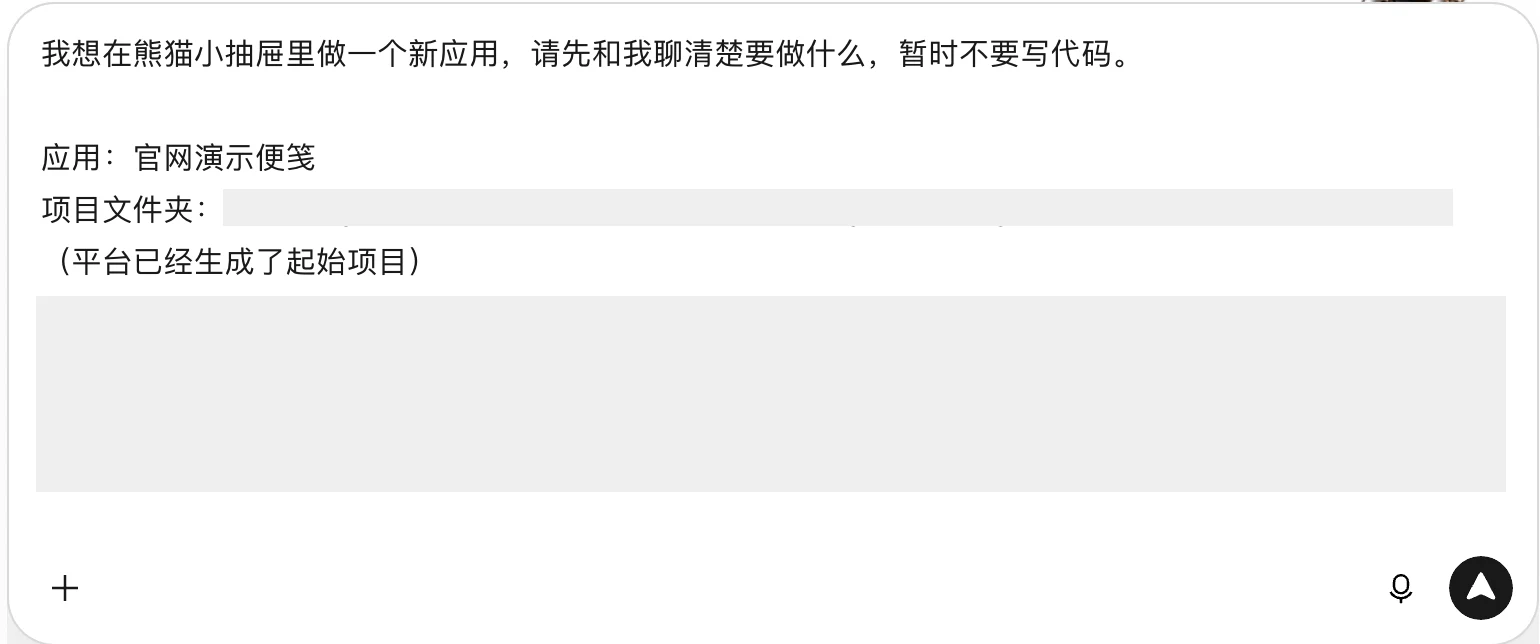
On Windows, or when the tool did not open or receive a message, click Only copy the prompt in the app details. Open the whole folder listed in the message in your AI tool. Paste the instructions into a conversation that can edit files, then send them. On Windows, use Open in File Explorer in the app details to find the folder. More ways to connect your AI tool.
Wait for the AI to ask what you want to build before sending the next message.
3. Describe the first version
Send this in the same conversation:
1 | I want a simple notes app for myself. |
If the plan is hard to follow, ask what you will see when the app is finished and how to test it. Once the plan is clear, tell the AI to start.
4. Open the result
When the AI says the first version is ready, go back to Panda Drawer.
- If the AI asks you to prepare the app, save any work, close the notes window, and click Prepare app in its details. Wait for it to finish, then click Open.
- If the notes window is open, save any work first. On macOS, click Reload at the top right. On Windows, see the troubleshooting guide for the reload steps.
- If the notes window is closed, click Open in the app details for My Notes.

If you still see the old screen or get an error, tell the same AI what happened:
1 | I opened My Notes in Panda Drawer after you said it was ready, but I see ... |
5. Try saving a note
- Write Buy milk on Friday and save it in the notes window.
- Close the window and reopen My Notes from Panda Drawer.
- Look for the note you just saved. If it is missing, tell the same AI what you did and what you see.
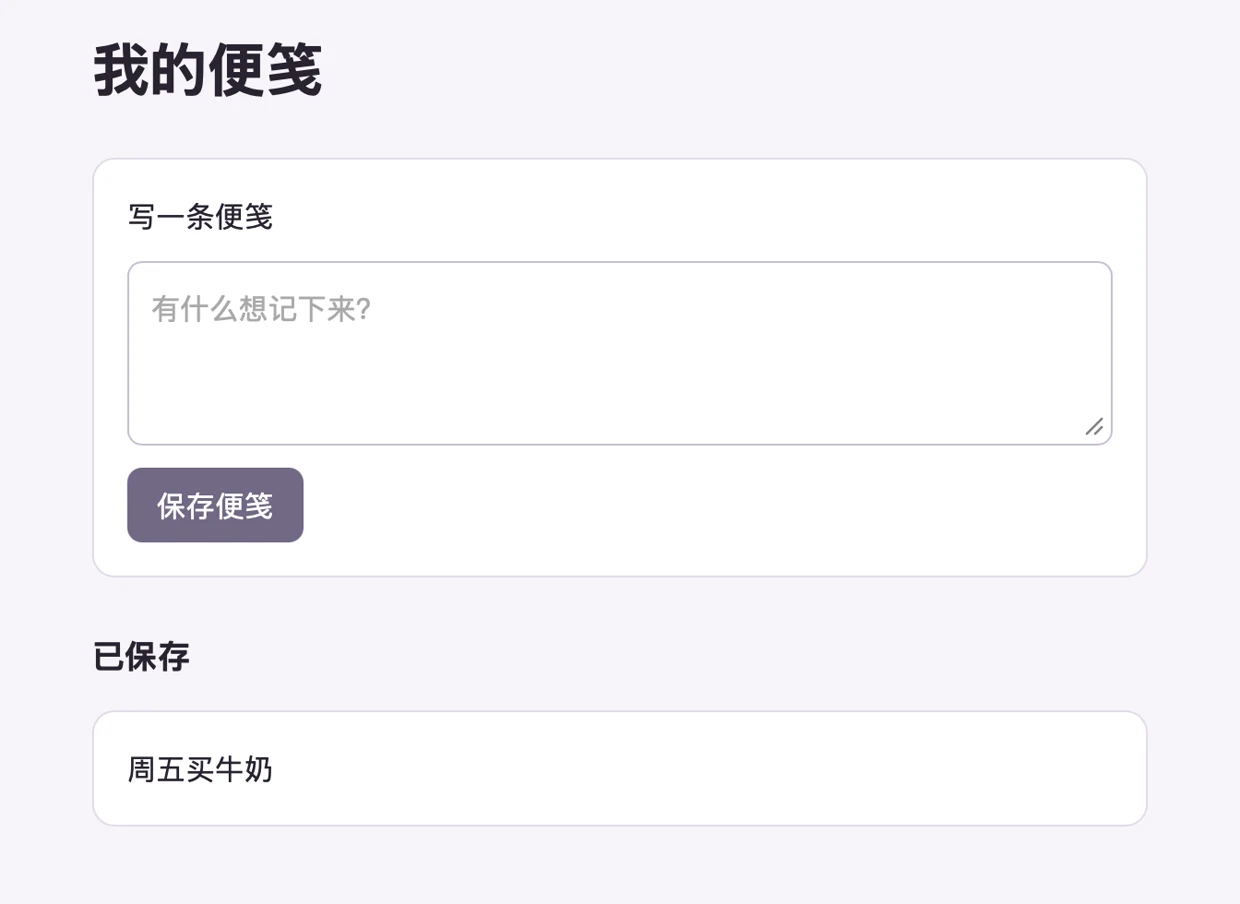
This screenshot shows a working example. Your buttons and layout may differ. The check is that the note is still there after closing and reopening.
6. Add one thing at a time
Once you know saving works, choose one feature you will actually use, such as search, tags, or pinning. For pinning, you could ask:
1 | I want my important notes at the top. |
Use the same app details to hand off future changes. See how your data is stored or try changing Clack.