
Make Clack’s practice text bigger
If the text you follow in Clack is hard to read, ask your own AI tool to make it a little bigger. You need a tool that can edit files on your computer, such as Codex or WorkBuddy. The screenshots show the Chinese interface.
1. Add Clack
Add and open Clack. If you have already added it, open it from My apps in Panda Drawer.
2. Finish one passage
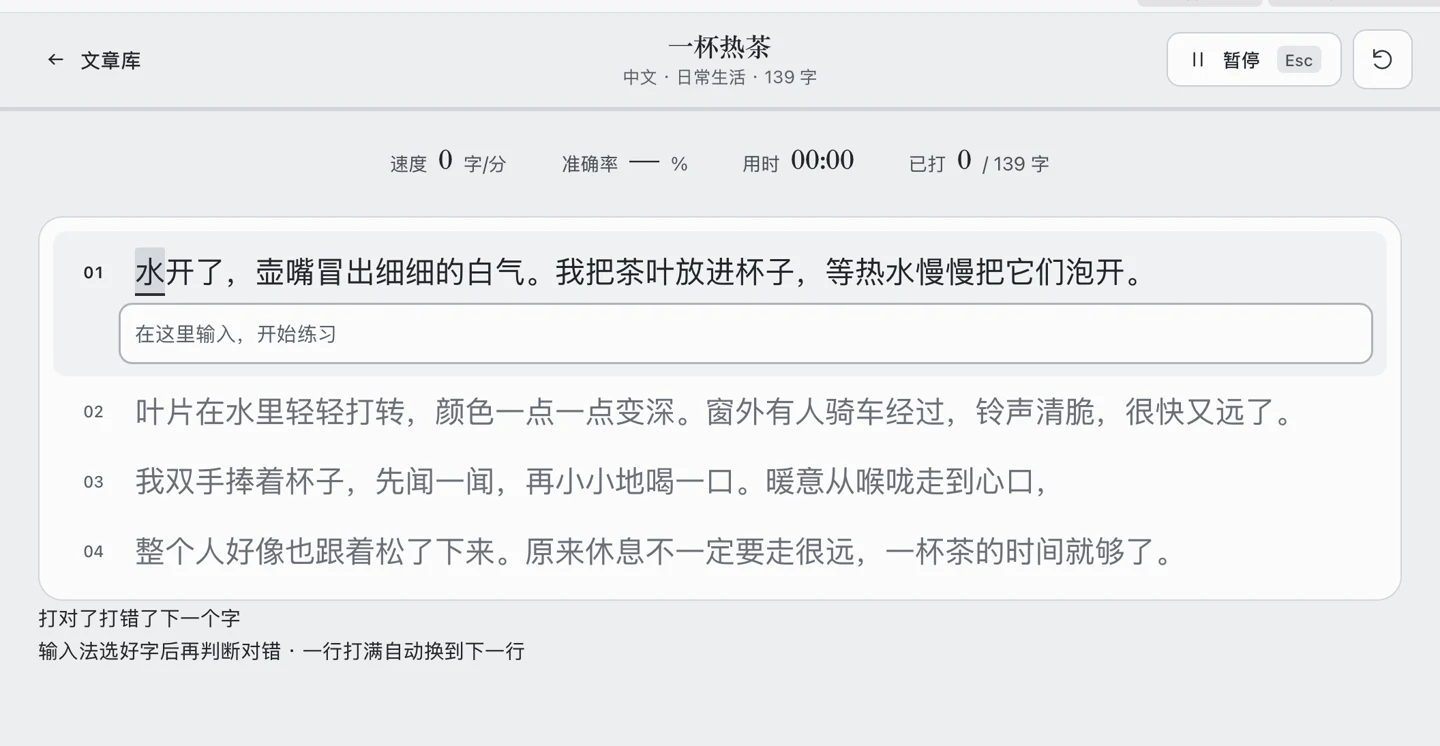
In Practice, pick a passage language and Short, then click Start. Notice the size of the text above the typing box. After you finish, open History and make a note of the passage title so you can check it later.
3. Open Clack in your AI tool
- In Panda Drawer, open Clack’s app details and find Make it your own. On macOS, choose your tool and click Change with WorkBuddy or Change with Codex. You can also click Change it your way at the top right of the Clack window.
- Check that your AI tool opened Clack’s project folder. If Panda Drawer filled in a message, review it and send it. Wait for the AI to describe Clack and ask what you want to change.

On Windows, or when the AI tool did not open or receive a message, click Only copy the prompt in Clack’s app details. Open the whole Clack folder listed in the message in your AI tool. Paste the message into a conversation that can edit files, then send it. On Windows, you can find the folder with Open in File Explorer. More ways to connect your AI tool.
4. Ask for one specific change
Send this in the same conversation:
1 | The passage above the typing box in Clack is hard to read. |
If the AI suggests a bigger change, ask it to change only the text above the typing box for now.
5. Open the updated app
When the AI says it is done, finish any practice in progress and follow its instructions.
- If the AI asks you to prepare the app, close Clack, open its details, and click Prepare app. Wait for it to finish, then click Open.
- If the AI asks you to reload, click Reload at the top right of Clack on macOS. On Windows, expand More in the app details, open Detailed runtime information, and click Reload project window.
- If Clack is closed, click Open in its app details.

If you still see the old version, check the troubleshooting guide. If there is an error, give the exact message and the last button you clicked to the same AI.
6. Check the text and your history
Open the same passage again and see whether the text is easier to read. Type a few lines to check that practice still works. Then open History and look for the result you saved before the change.
For another change, you could ask for a 60-second practice mode that shows the result at the end and keeps regular practice and existing history.
Before deleting Clack
Deleting a Clack installed from the recommendations also deletes its project folder and practice history. Export anything you need before deleting it and check the confirmation screen. If you are done for now, close the window.