
Clack
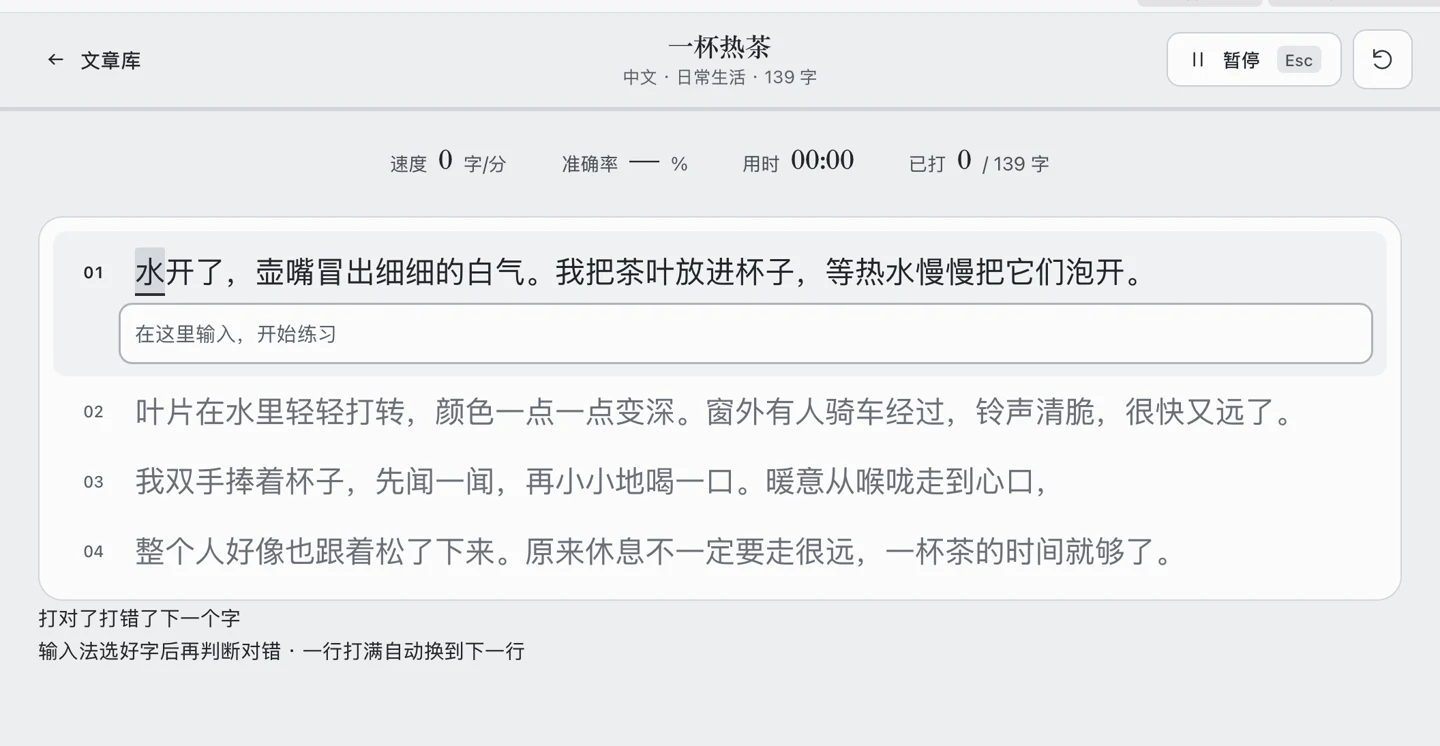
Choose a Chinese or English passage and type it line by line. Once you fill a line, Clack moves to the next one. At the end, you can review your speed and accuracy or practice the characters you got wrong.
Regular practice needs no AI tool, account, or API key. You can practice offline after adding Clack.
Add and start practicing
The screenshots show the Chinese interface. You can switch Clack to English with the EN button at the top right.
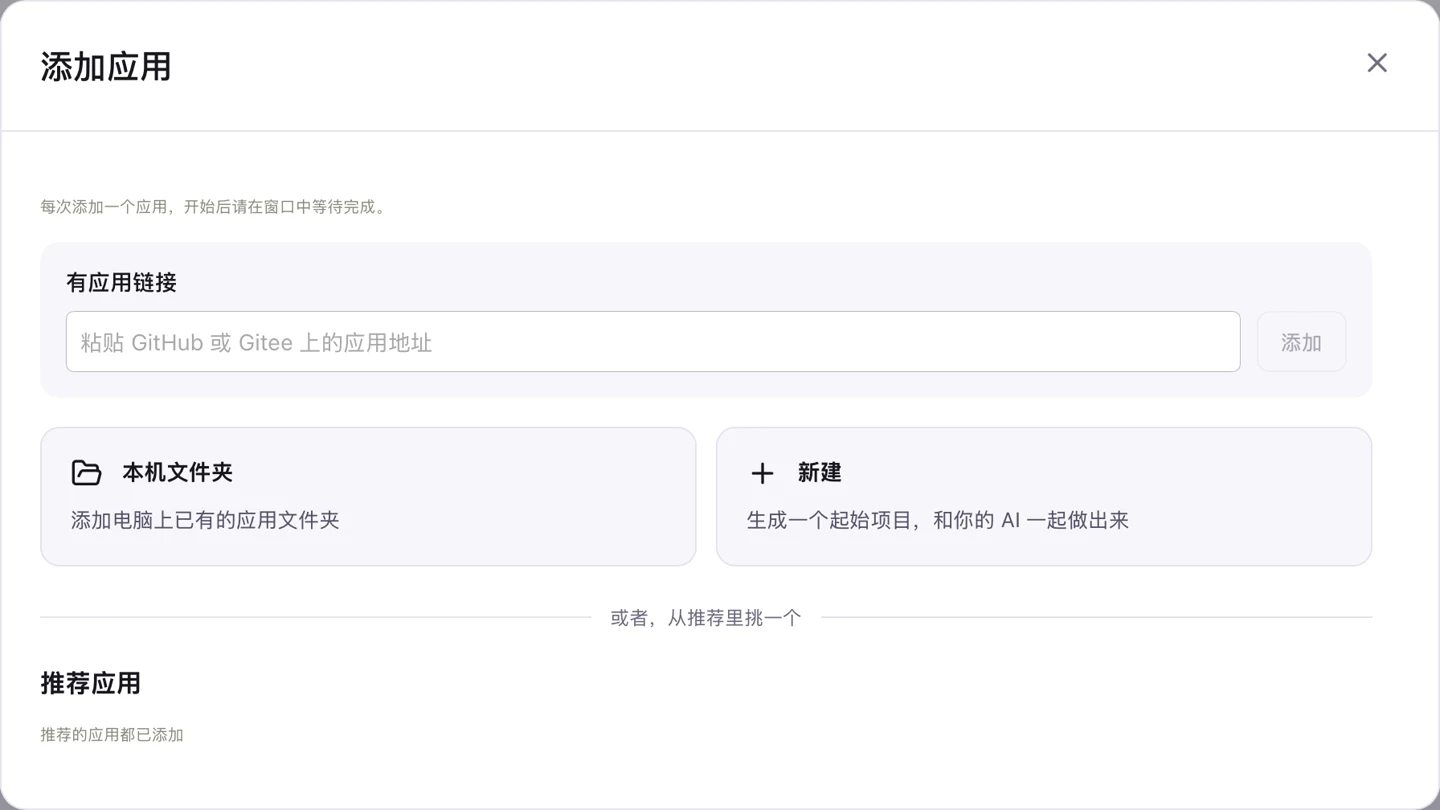
- In Panda Drawer, click Add application. Find Clack under Recommended apps, then click Add. When you have no apps yet, the main screen also shows the recommendations.
- If you see Preparation needs confirmation, click Prepare and add and wait. Then open Clack. It opens in its own window on Practice. If the recommendations say All recommended apps have been added, open Clack from My apps.
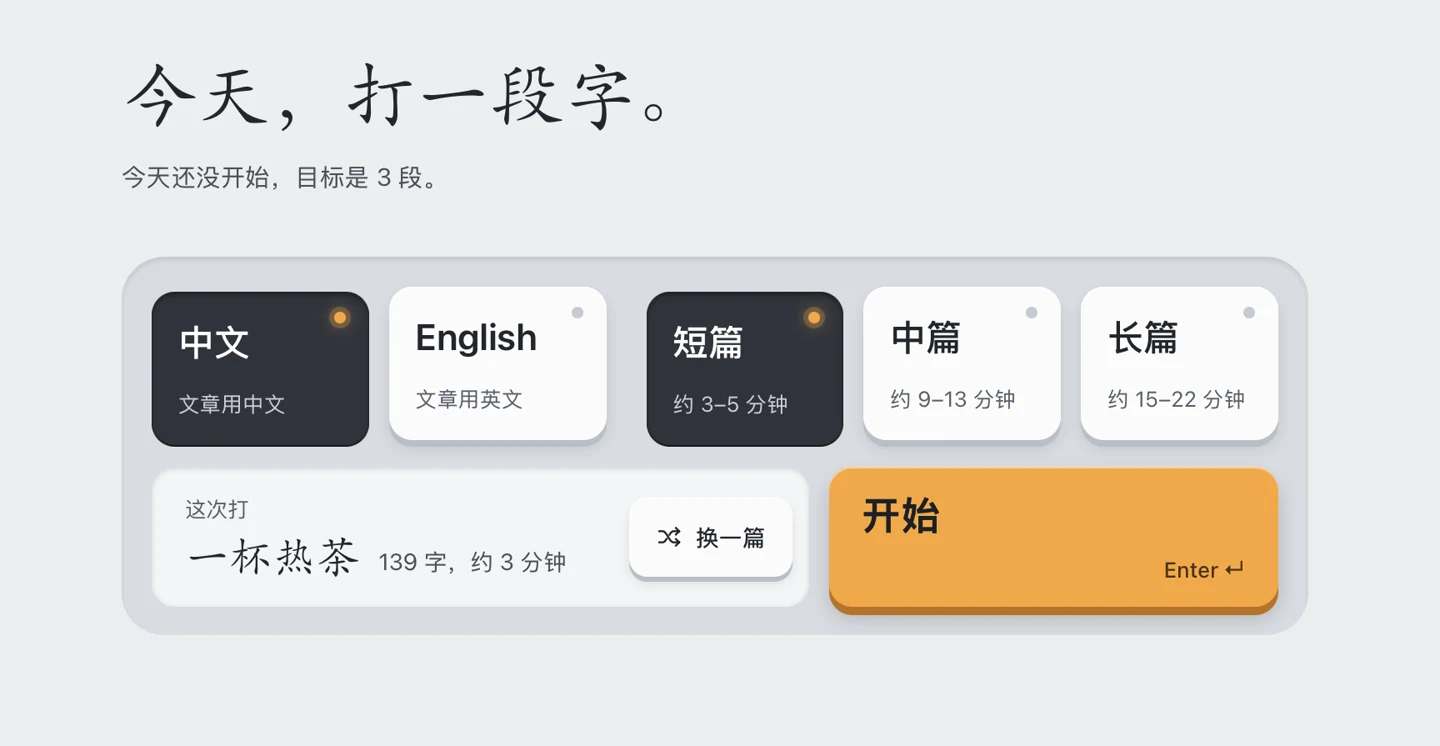
- In Practice, pick a passage language and try Short for your first session. Check the suggested passage, then click Start. Choose Another one for a different suggestion, or choose a passage from the list below.
- Type the text above the input box. Clack advances when you fill the line.
- Review your result after you finish. Open History at the top of the window to find the passage you just completed.
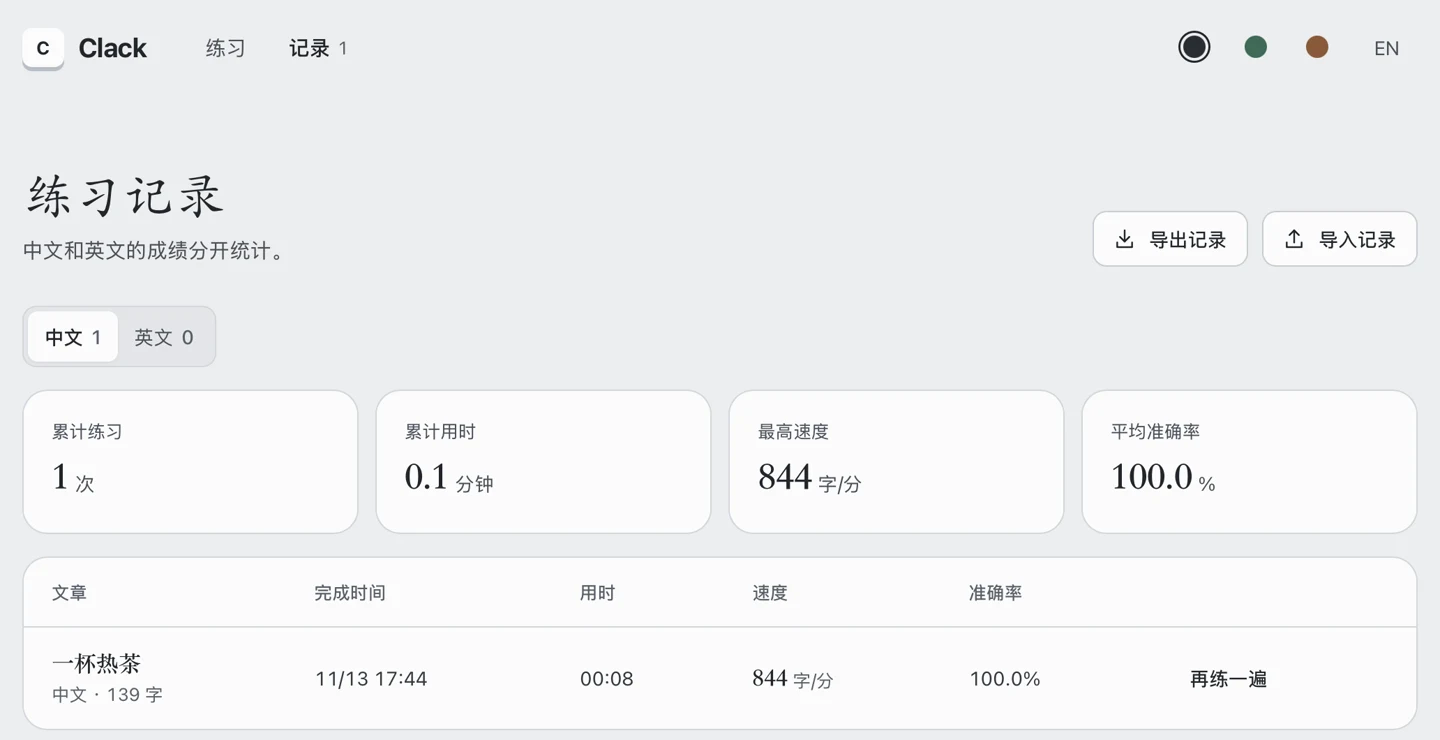
If the result is missing, select the language you practiced in History. Clack tracks Chinese and English separately. Your history and settings stay on your computer. You can export a backup from History.
If the download is slow in China, open Settings, find Download source, and choose China (Gitee). You can also paste the GitHub link or Gitee link into App link in Add application.
Change how practice works
If the passage is hard to read, follow the Clack tutorial to ask your AI to make the text bigger.