
Getting started
Choose a ready-to-use app and try it. If there’s something you’d like to change, describe it to your own AI tool.
1. Get ready
If you haven’t installed Panda Drawer, check the download status and system requirements. You can switch between English and Chinese under Language in Settings. Apps manage their own interface language.
To change an app, use an AI tool that can edit local files, such as Codex, Claude Code, Cursor, Trae, or WorkBuddy. Clack’s typing practice works without AI. Apps such as Gleaner use your own AI for some everyday tasks.
Browser-based chats such as Doubao and ChatGPT on the web cannot directly edit files on your computer. Work with your AI explains how to use supported tools.
2. Add an app
Click Add application, pick an app under Recommended apps, and click Add. If you have no apps yet, recommendations also appear on the home screen. For your first app, try Clack. It needs no account, AI tool, or API key.
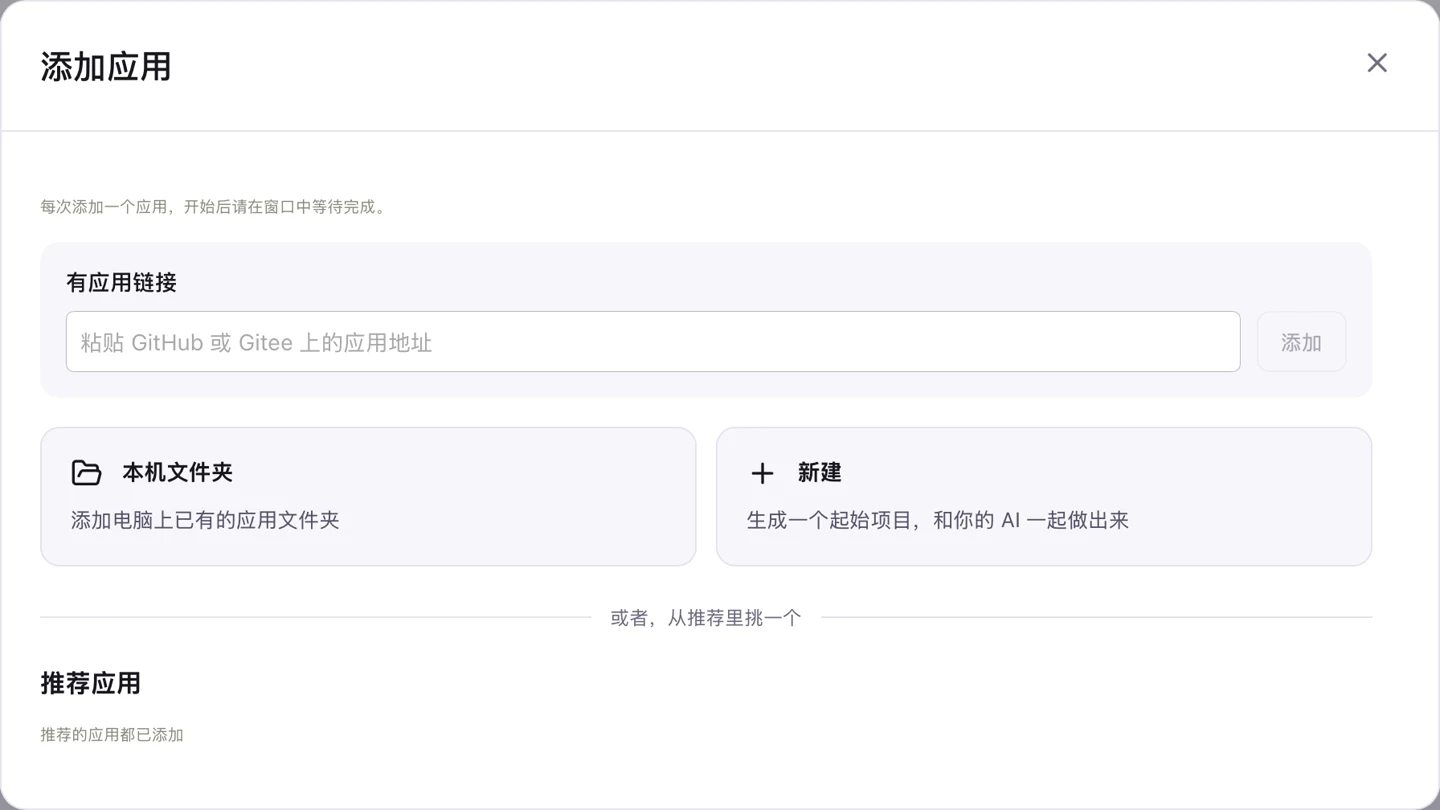
The Add application window also has three other options.
- Paste the app’s GitHub or Gitee URL under App link, then click Add.
- Click Local folder to choose an app folder already on your computer.
- Click New, give the app a name, and make it with your AI. If your library is empty, you can also choose Have AI make a new one on the home screen.
Panda Drawer shows progress as it adds each app. If you see Preparation needs confirmation, click Prepare and add and wait for it to finish. If you see Hand to AI, you can ask your AI to check what went wrong.
On macOS, when adding Gleaner, choose Default location or Choose an empty folder, then click Start adding. Gleaner needs an AI tool that can search the web and read and write local files. How to use Gleaner
3. Configure and open the app
If the app needs setup, you’ll see App configuration after adding it. Enter your API key, click Save configuration, then click Open application. You can update these settings later under App configuration in the app details. Each app has its own window that you can open and close separately.
Check the app pages for accounts, services, and possible costs. Enter API keys in Panda Drawer itself. The AI tool does not need to see them.
4. Ask your AI to change an app
On macOS, Panda Drawer detects installed AI tools and asks which one you want to use the first time you hand off an app. You can change it later in Settings under My AI tool. Click Check again if you just installed a tool.
In the app details, choose a button such as Change with Codex. On macOS, Change it your way in the app window’s title bar opens the same workflow.

You can also click Only copy the prompt, open the project folder in your AI tool, then paste and send the prompt. See the Windows steps.
The AI first reads the app and asks what you want to change. For small changes such as text, colors, or layout, it can explain the change and proceed. For larger changes or anything affecting data, it should explain the plan and wait for your approval.
Follow the tutorial to customize Clack.
5. Try your changes
Save any work in the app window, then follow your AI’s update steps. On macOS you can click Reload in the window’s title bar. If your AI asks you to run Prepare app first, close the app window, wait for preparation to finish, then reopen it.

Try the change and check that your previous work is still there. If you want to change something else, ask in the same AI conversation.
6. Choose a download source
In Settings, Download source defaults to Automatic (recommended). You can switch to China (Gitee) or Global (GitHub). This setting applies to recommended apps.
Windows steps
- In the app details, click Only copy the prompt. Open the app’s project folder in File Explorer to find its location.
- Open that folder in your AI tool. Paste and send the prompt in a conversation that can edit files.
- After the AI finishes, save any work in the app window. Return to the app details, expand More and Detailed runtime information, then click Reload project window.
Closing the Panda Drawer management window on Windows quits the program.